This walk:
2021-11-25. "Two Bridges Quarry Tor", Longford Tor, Littaford Tor, gateway, Crockern Tor, Stannary Parliament, Parliament Rock (cryer's seat), Bellever Tor, Beardown Tors, firing range flagpole, Devonport Leat, Higher White Tor, (Wistman's Warren), Wistman's Wood, Buller Stone, Crow Tor, West Dart River, Cowsic River, 1931 road bridge plaque, Two Bridges Hotel, 1792 turnpike road bridge, HT 94 stone, telegraph marker. D365-(K9), L9, M9.
Walk details below - Information about the route etc.
Previous walks in this area: 3 June 2009, 8 October 2009, 4 February 2015, 3 February 2016, 3 November 2016
Reconnaissance walks: 29 January 2020, 5 February 2020, 21 February 2020 - the 29th Jan, has all the labels.
This walk used the 29 January 2020 GPS track is used on the map at the bottom of the page - it was the longer 4� mile walk, going along the "tops" before dropping into the Valley at the far, north end.The GoogleSatellite view of the route is here: 29 January 2020

"Two Bridges Tor" - this granite formation in the car park opposite the Two Bridges Hotel.
This feature is said to illustrate how the tors of Dartmoor were formed - the rock is eroded underground. The hypothesis being that the rain-water was acidic, further enhanced by the soils, causing the erosion i.e. "rotting" of weaknesses in the rock to form horizontal and vertical joints, leaving them filled with soft growan and sand. The growan and sand becomes removed in geological time i.e. millions of years as the nascent tor becomes exposed to the atmosphere by the erosion of the overlying soils. Source: Ken Ringwood, Dartmoor's Tor and Rocks, University of Plymouth Press, 2013, page 9 .....

A closer view: the quarry is one of many roadside pits developed for sand, gravel and stone by roadbuilders .....

Copyright permission sought - no longer the
publisher (since 2005), rightsholder unknown
Drawing of the Two Bridges quarry car park from John W Perkins (1972), Geology Explained: Dartmoor and the Tamar Valley, David & Charles, Newton Abbot, p.81.
John W Perkins 1935-2008 Obituary - a Devonian

Zoomed view to Longford Tor, SX 615 779, elevation 507 metres (1663 feet), seen from the high ground near Two Bridges .....

Zoomed view to Littaford Tors, SX 61620 76916, elevation 444 metres (1456 feet), also from high ground near Two Bridges.

Galloway cows seen near Two Bridges. The farmer said that some years ago he had them with a dun Galloway bull and that occasionally a dun ("blond") calf is born as a "throwback". There is one present now, in January 2020. Before meeting the farmer feeding them (5th Feb. 2020), I was trying to decide if they were Dexters (seen near Hound Tor) or Angus, with them being all-black. I always thought Galloways were "belted" Galloways. Moral - never judge a book by its cover!

The site of Muddilake Brook Head, SX 61225 75796, near enough the "X" made by the track going across the wet trace of the stream. There is a "mirey" area just left of this, with some stones. The gate in the next photograph can be seen in the wall behind, slightly to the right.

First gateway, at SX 61164 75347, note the iron gate-hangers. Through here and turn right for Crockern Tor .....

Approaching Crockern Tor, meeting place of the Stannary Parliament, SX 61560 75778, elevation 400 meters (1312 feet) ..... the famous Parliament Rock formation is down to the right .....

A view of the Parliament Rock, near the bend in the Two Bridges / Postbridge road. This is presumably the "high corner stone for the cryer of the Court" as described by Hemery (p.432). There were also the Judge's Chair and Judge's Table - both removed to Dunnabridge by a Mr Leaman, using "12 yoke of oxen" - I take this to mean a team of 24. There is an oval area below this that could have sat 80-100 "jurats" or members of the Parliament. The mighty covered Judge's Chair is now the prominent attraction at Dunnabridge Pound.
The Stannary Parliament was the Great Court of the Devon Tinners: the court gatherings were really legislative meetings to discuss and enact the statutes that governed the tin industry of Devon. There were four ancient stannary towns where tin was weighed, assayed and tax paid: Ashburton, Chagford, Plympton and Tavistock. There are records of some of the meetings at "Crockerentorre" which are believed to go back to 1300 AD. There is a book by Tom Greeves & Phil Newman (2011), The Great Courts of Devon Tinners, 1510 and 1710, Dartmoor Tinworking Research Group, Exeter.
See Tin on Dartmoor (notes) - between 1100 and 1650 AD some 26,000 tons of smelted, white tin were extracted from Dartmoor - the work involved a tremendous amount of ground disturbance, especially in the river valleys. The most productive year was 1524 AD, when 252 tons of white i.e. smelted metal were produced.

A stone table! There are said to be other identifiable items that might have been used here "back-along" .....

Another view of the imposing Parliament Rock, or "Court Cryer's Chair".

Zoomed view to Bellever Tor - the sun didn't shine on it all day!
Several features can be seen from high ground near Crockern Tor
(these bearings from SX 61565 75841 using Memory Map)
- based on Hemery's list on page
426.
| Feature | Bearing � | Distance (miles) |
| North ..... | ||
| Cut Hill | 344� | 4.4 |
| Black Ridge | 346� | 6.2 |
| Whitehorse Hill | 359� | 6.0 |
| Quintin's Man | 2� | 5.1 |
| Littaford, Longaford & Higher White Tors closer | ||
| Siddaford Tor | 12� | 4.6 |
| North-east ..... | ||
| Sheepfold | 28� | 3.6 |
| Hartland Tor | 30� | 3.1 |
| Caroline Farm | 43� | 4.6 |
| Central Basin landmarks ..... | ||
| Powder Mills | 45� | 1.1 |
| Bellever Tor | 76� | 1.8 |
| Brimpts Plantation | 112� | 3.3 |
| Stennats (Swincombe) | 148� | 2.5 |
| all with Ryder Hill beyond | 145� | 5.0 |
| East ..... | ||
| Cherry Brook peninsula | ---- | ---- |
| Hameldown | 60� | 6.2 |
| Hey Tor | 83� | 8.8 |
| Saddle Tor | 86� | 8.4 |
| South-east ..... | ||
| Corndon Tor/Hill | 102� | 4.5 |
| Sharp Tor | 110� | 4.7 |
| Yartor Down | 111� | 4.3 |
| Double Dart Valley >>> | ---- | ---- |

A view of two of the Beardown Tors - the right-hand one has the firing range flagpole .....

Flagpole at SX 60527 77396.

Looking across from high ground after Crockern Tor towards the plantation on Beardown Hill, the area where Devonport Leat is said to "run uphill". It is hard to photograph properly without a tripod and a spirit level ..... more below.

A view of Littaford Tors (near), Longford Tor (left) and Higher White Tor, at SX 61980 78571.

Another view of Littaford Tors with Longford Tor behind (in shadow).

The main pile at Littaford Tors. Down to the left, this side of the rocks, is a very long rabbit bury ("pillow mound") that is part of Wistman's Warren - 108 metres (118 yards). It is a lot of brown tussocky grass in brown tussocky grass and does not photograph well! According to the HER record below there are, variously, 12, 17, 15 and 16 +8 probable pillow mounds. Slightly confusing.
Devon & Dartmoor HER - MDV14156 - RABBIT WARREN in the Parish of Dartmoor Forest
According to Eric Hemery (1983), High Dartmoor, Robert Hale, London, p.456, the warren was built in 1895 by James Saltroun of Powdermills as an endeavour, after the closure of the gunpowder factory at Powdermills. There was a game keeper and a butcher from Tavistock took a weekly delivery of rabbits for meat. The keeper lived in a wooden shack but joined the prison service at some point, the shack was a ruin before the start of WW1.

Overview of the Beardown Tors.

Devonport Leat, running across the photograph down from the skyline. The slope of the valley bottom and the West Dart River, falling to the left, and the slope of the hill, also falling to the left, give the illusion that Devonport Leat (the thin dark line across the view), flowing to the left is actually running uphill.

Looking back up at Littaford Tors.

A low-angle view of the Buller Stone, at SX 61246 77352, taken on arrival in not-so-good light (there are better-lit photographs below). This is to compare with the following photograph .....

Image
reproduced with permission from
Dartmoor Archive
See the image online
HERE
This Dartmoor Archive photograph was taken in 1889, 130 years ago, when the tree next to the stone seems not to have been there. There are old photographs that show the wood has changed shape over the years.

Crow Tor, SX 60632 78791, elevation 501 metres (1643 feet); also known as Crewtor and Crowter .....

Zoomed view.
Further up the valley - Wistman's Warren House .....
Pastscape Monument No. 442777 - click "Related Text" - it was intended to include this site in the walk, but the clitter path is perhaps beyond our group. Another link to the site is Legendary Dartmoor - Wistman's Warren.
William Crossing (1912, reprinted 2001), Crossing's Guide to Dartmoor, Peninsula Press, Newton Abbot, page 115 .....
| "About a third of a mile above the higher oak grove, which is due W. of Longford Tor, is Wistman's Wood Ford on the Dart, and to this we shall now direct our steps. On our way we pass a small deserted dwelling, constructed of wood, once the abode of a warrener, and in which readers of The River will recognise the home of Nicholas Edgecombe." |
The River refers to the Eden Phillpotts book, published in 1902.

Zoomed view down to the West Dart River. The East Dart runs through Postbridge, under the iconic clapper bridge, before they join together at Dartmeet.

Returning to Wistman's Wood, with some sunshine ..... the Buller Stone again .....

A closer view of the Buller Stone .....

The Buller Stone inscription ..... photographed on 3rd June 2009,
there is more lichen growth on it today .....
BY PERMISSION OF HRH THE PRINCE OF WALES
WENTWORTH BULLER
ON SEPT 16th CUT DOWN A TREE NEAR THIS SPOT
IT
MEASURED ( 9 IN ) IN DIAMETER
AND APPEARED TO BE ABOUT
168 YEARS OLD

Wistman's Wood is a place I have never taken a pleasing photograph of - it is so cluttered and "busy", although I had some decent lichen photos a few years ago and in the mid-1970s, in the Nikkormat Era .....

The rocky "floor" almost precludes any walking in the wood. There used to be a Nature Conservancy notice about the area.
WISTMAN'S WOOD - There is discussion in the literature about the origin of the name . To save excessive text, this quotation from Mike Brown suffices .....
| Altogether a remarkable place, said by early antiquaries to be the home of the druids, supposing Wistman to be a corruption of �wise man�. But, quite aside from the reality that there is no evidence whatsoever to associate these white-bearded priests with Dartmoor, this supposed derivation of the name is incorrect. There are two more plausible explanations for the name, either that it is derived from Welshman�s Wood, �Welsh� or �Wealas� being the Saxon word for �foreigners�, or that it comes from the Devon word �wisht� meaning �haunted�. |
Source: Mike Brown (2001), Guide to Dartmoor, CD-ROM, Dartmoor Press, Grid Square 612 774.
Also: Mrs Bray (Anna Eliza Bray or Mrs A. Eliza Bray) (1836), The Borders of the Tamar and Tavy, Vol 1, John Murray, London. p.57, 73, 97-102.

Looking from Wistman's Wood down the valley towards Two Bridges - the sun had "gone in" .....

Similar to the previous photograph but zoomed, showing the West Dart River .....

As previous photograph.

Looking back at Wistman's Wood, where the slopes of the valley floor and skyline of the hill make it appear that the Devonport Leat (the thin dark line running left/right) is running uphill, towards the left.

View from the modern road bridge at Two Bridges, opened 1931, showing the Cowsic River (largely hidden by overhanging tree branches, lower centre in photograph) running into the West Dart River .....

Plaque on the 1931 Prince Edward Bridge ..... there is supposed to be a "C stone" here somewhere but it has eluded me so far! These date from the Bridges Act 1803 (see down the article) which included: " ..... namely, the 'County Surveyor' of the County responsible for the upkeep of subject bridges, and the roads over them for 100 yards past the ends of the bridge ....." Prior to this, bridges were subject to the Bridges Act, 1530 and several others that have come and gone. Those on Dartmoor are listed on Legendary Dartmoor - The County Stones.

Two Bridges Hotel .....

Image reproduced with permission:
Devon County Council
In the 1840 Lydford (Forest of Dartmoor) Tithe Map the Two Bridges Hotel was the Saracen's Head Inn (from bottom left corner, 1/3rd the way in and 1/3rd the way up). Also on the 1888-1913 Series 25-inch OS map.
Saracen's Head Inn: a booklet to mark its 225-year history records that "By 1772 the Turnpike bridge had been constructed across the Dart at Two Bridges and by 1794 Francis Buller had constructed the inn near the site. The inn bore the name of The Saracen�s Head, a familiar name for pubs at the time but likely also connected to the fact that the Buller family crest was a Saracen's head 'affronte, couped, proper'". Source: Alex Mettler (2015, rev.edn. 2018), Air Like Champagne: A short history of the Two Bridges Hotel, Dartmoor. Published by Two Bridges Hotel, Dartmoor, Devon, page 2.
The name "Two Bridges Hotel" seems to first appear after a change of landlord in May 1849 in an advertisement in the Western Morning News. In 1885, the name The Saracen's Head Inn appeared in an advetisement to let including "that well known Inn House 'The Saracen's Head' ..... with buildings, stables, sheds and appurtenanes etc'". The Two Bridges Inn was destroyed by fire in late May 1866, as reported in the Exeter Flying Post. The old name continued to be used for some time.
Wentworth Buller, who cut the tree in 1868, was no doubt related to Sir Francis Buller, who had built the inn by 1794, some 74 years earlier? A web page about The Bullers of Bovey Tracy mentions Capt. Thomas Wentworth Buller (1792-1852); Wentworth William Buller (1834-1883). There is a Wikipedia entry for Sir Francis Buller that includes "He also built an inn, named the Saracen's Head after the Buller family's crest, at Two Bridges, on a site now occupied by the Two Bridges Hotel." This was citing: William Crossing (1902), A Hundred Years on Dartmoor, 5th edn, The Western Morning News Co. Ltd, Plymouth, p.53. Wentworth William Buller was much involved with the Bovey Tracy Pottery Company.

The earlier 1772 turnpike road bridge that runs past the hotel door.
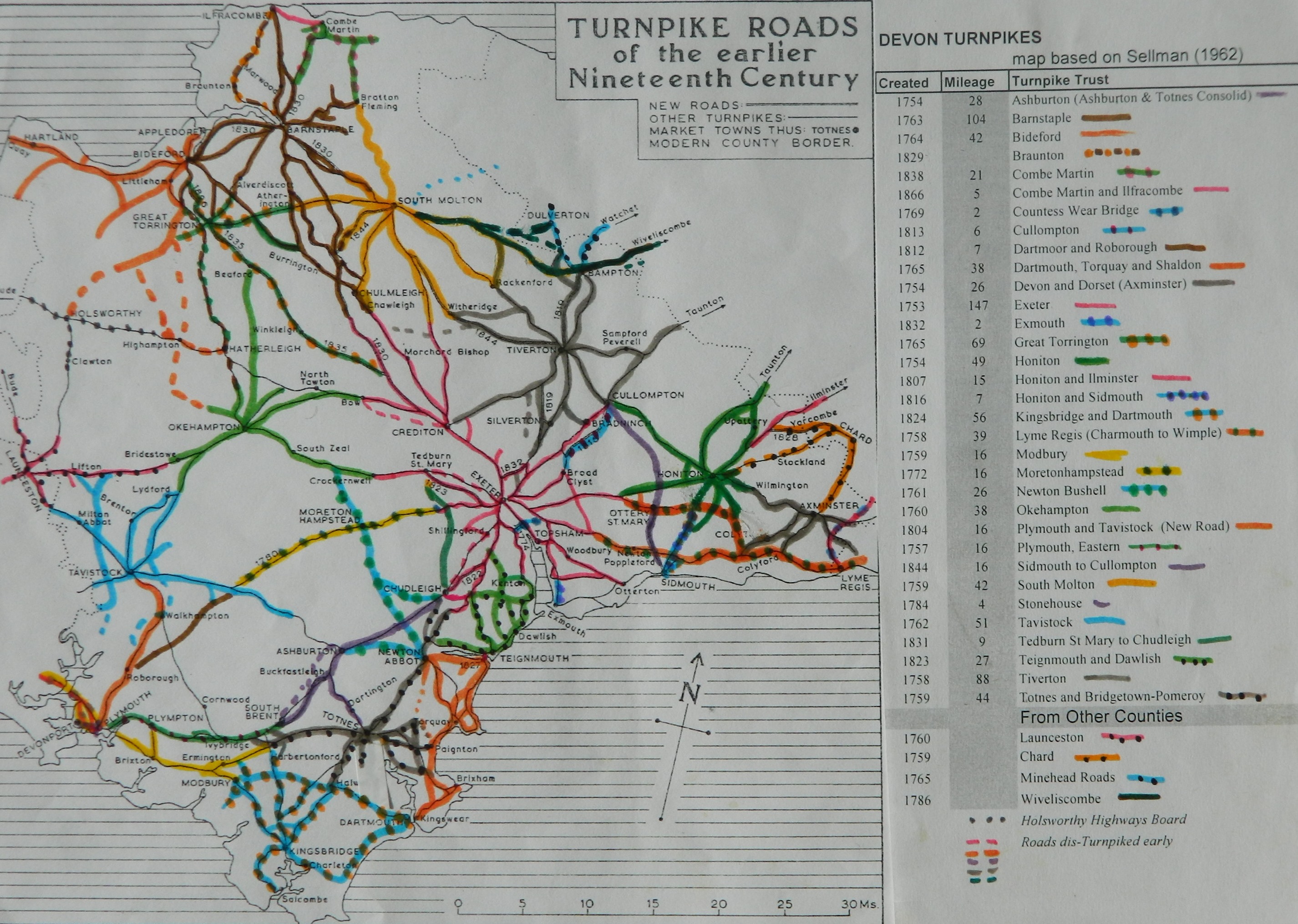
The history of the roads in the area is not easy to follow. Tavistock Turnpike Road Trust (created 1762) included the road through Two Bridges to Moreton Hampstead. Plymouth and Tavistock Turnpike Road (created 1772) and Moretonhampstead Turnpike Trust (created 1772) cut the new road across Dartmoor (Tavistock to Exeter). The road from Two Bridges to Moreton Hampstead was built in 1780. The Roborough and Dartmoor Turnpike Road Trust (created 1812) also seemed to have been involved. They all seem to have Two Bridges mentioned in their descriptions.

Old mill stone in the garden .....
 |
 |
|
|
HT 94 - Henry Trinaman - the Saracen's Head Manager from 1893-1917. The Saracen's Head went on to become The Two Bridges Hotel. He moved in around 1893 and completed an extension in 1894, no doubt marked by this stone in the tarmac outside the main entrance, to the right at the far end of the picnic tables. There were later extensions. |
A GPO Telegraph Marker Plate in the hotel car park, across the way from the main entrance on the bend going out to the old turnpike road bridge. The E-R marking implies it was installed after 1953. These date back to Queen Victoria's era, marked V-R. They had loose plate inserts giving the distance to underground telephone cables. See HERE. |

Notice at the main hotel entrance, across the road from the quarry car park entrance.
MAP: Red = GPS satellite track of the walk.

� Crown copyright 2016 Ordnance
Survey
Licence number 100047373
Also, Copyright 2005, Memory-Map Europe, with permission.
This walk was reached by following the B3212 from Princetown and parking in the quarry opposite the Two Bridges Hotel, at the yellow cross/ P symbol on the map
Statistics
Distance - 7.5 km / 4.6 miles
All photographs on this web site are copyright
© Simon Avery.
All rights reserved - please
email for permissions